
 AppLocker Commander Manual
1 Description
1.1 What is AppLocker?
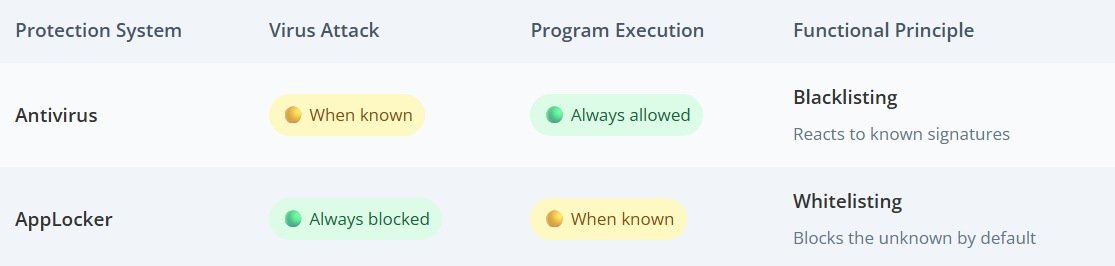
AppLocker is a rule-based system built on the whitelisting principle: it blocks everything by default unless explicitly allowed.
This also protects against malware that did not yet exist when the rules were created, without requiring the rules to be continuously updated.
As a rule, the rules only need to be adjusted when changes are made to the system, for example when software is installed or uninstalled.
1.2 Security Mechanisms Compared
1.3 Why AppLocker Commander?
AppLocker Commander makes the AppLocker feature built into Windows — but difficult to access — usable through a graphical interface, bringing together all the tools needed for it in one place.
Security rules can be created automatically, without having to edit the AppLocker configuration manually.
1.4 Manage Rules
● Create, edit, and delete AppLocker rules for executable files, DLL files, scripts, packaged apps, and Windows Installer
● Define rules by path, publisher, or file hash
1.5 Pause AppLocker
● Temporarily switch AppLocker to Audit only for all or individual modules
● Timed (1–60 minutes) or permanent, with a remaining-time display
1.6 Harden System
● Generate tiered AppLocker rules for the entire system in just a few clicks
● The protection level percentage shows the level of security achieved
1.7 View Events
● Monitor, filter, and search AppLocker events live
● Create a matching rule directly from a blocked event
1.8 Import/Export
● Export rules as XML and import them again individually or all at once
1.9 Install Software
● Run installation files in a controlled way without being blocked by active AppLocker rules
2 Instructions
2.1 Main View
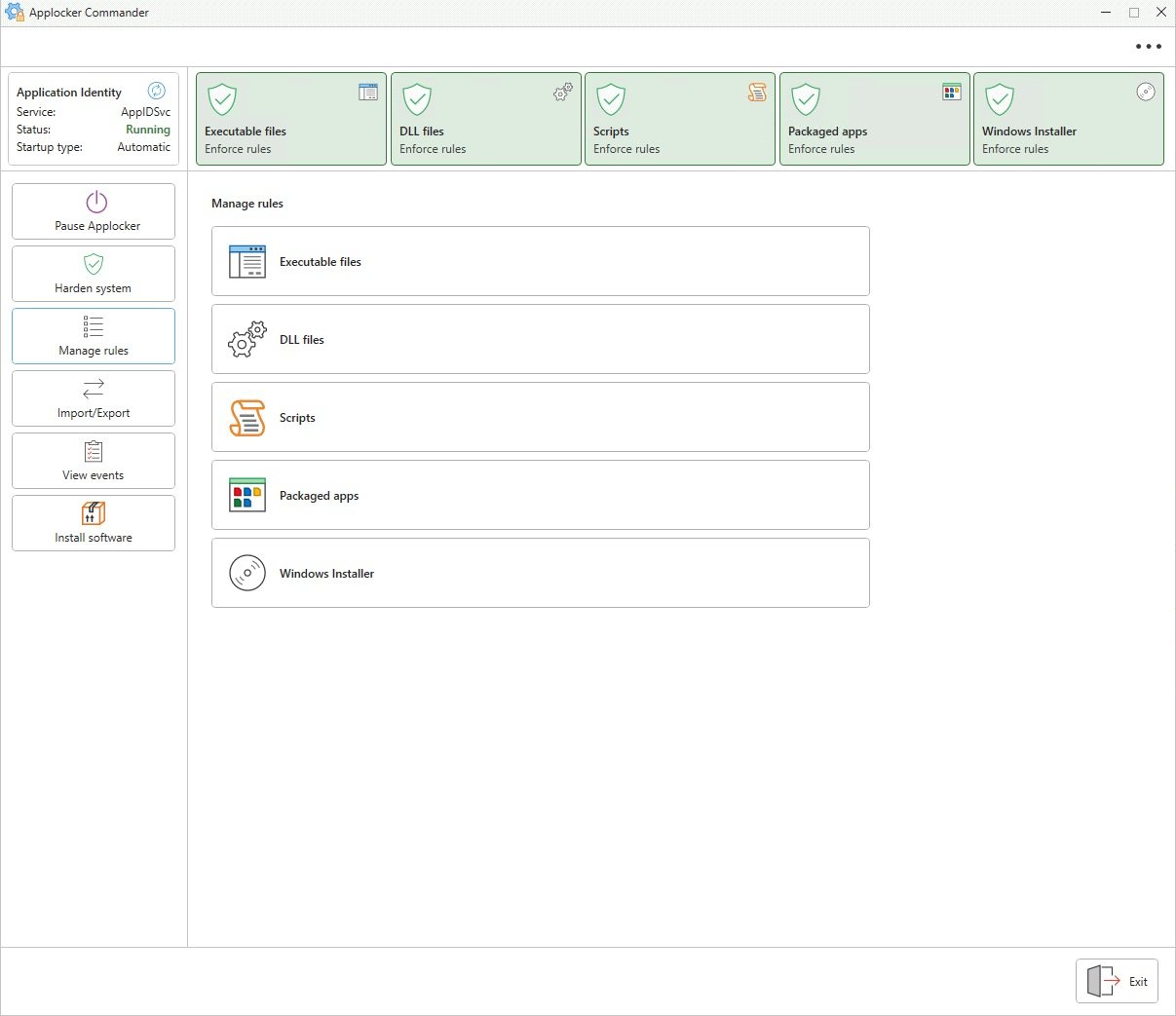
● Top left: Application Identity with service status (AppIDSvc)
● Top: Status monitoring
● Left: Main menu with all program areas
● Center: Entry point to the individual program areas
2.2 Status Monitoring

● Green with a checkmark means rules are being enforced for this module – blocked applications are actively prevented from running.
● Yellow with an exclamation mark means the module is in 'Audit only' mode – violations are logged but not blocked.
● The status is continuously checked against the existing rules.
● The polling interval can be adjusted in Settings.
2.3 Pause AppLocker
2.3.1 Select Duration
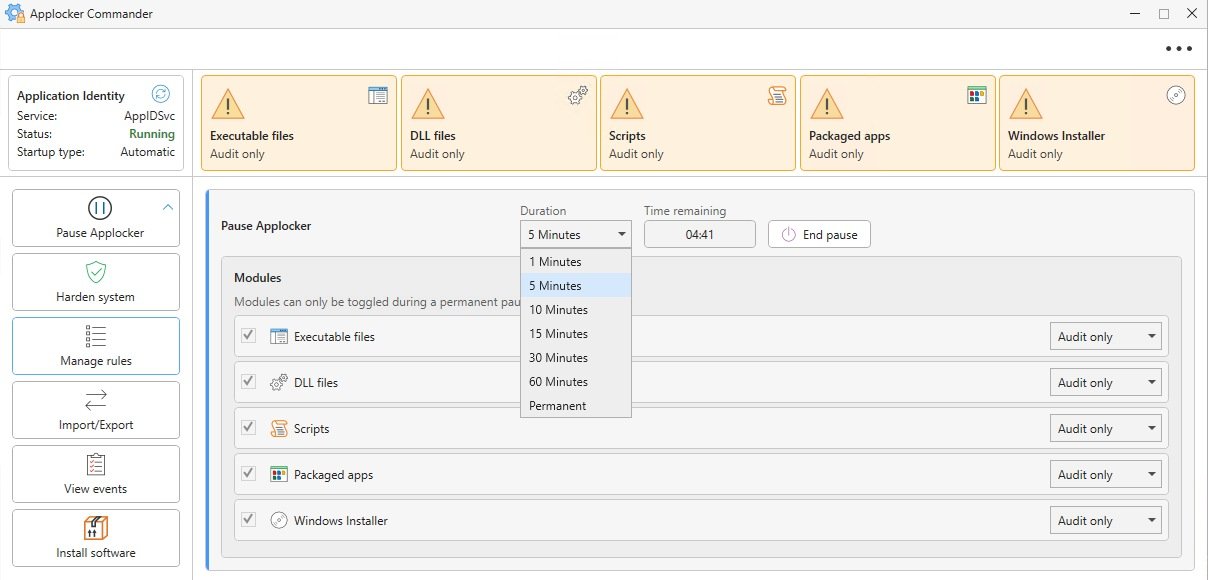
● Choose between 1, 5, 10, 15, 30, 60 minutes, or Permanent
● During the pause, Time remaining shows the duration left; End pause stops it early
2.3.2 Toggle Modules Individually
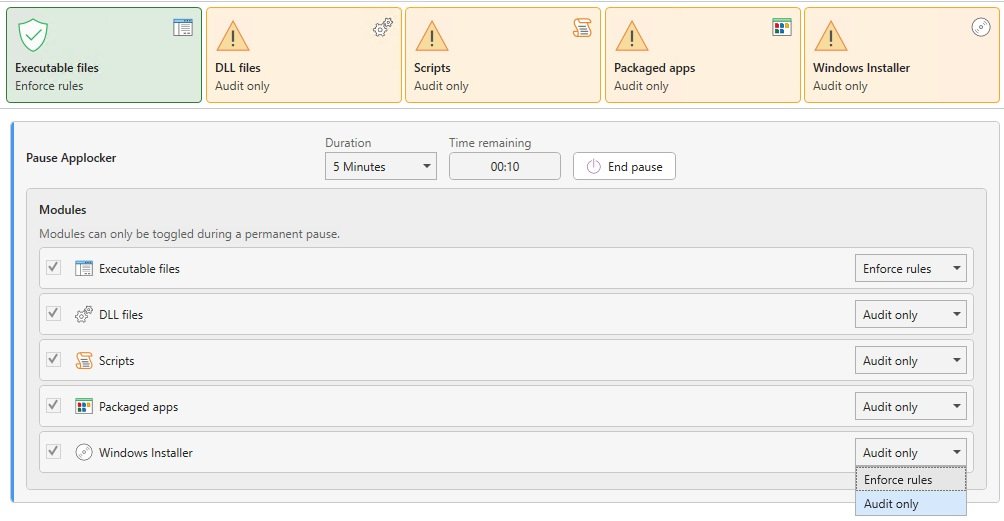
● Each module can be excluded from the pause using its checkbox
● Each module can be set to Enforce rules or Audit only – switchable while 'Permanent' is active
2.3.3 Permanently Disable a Module
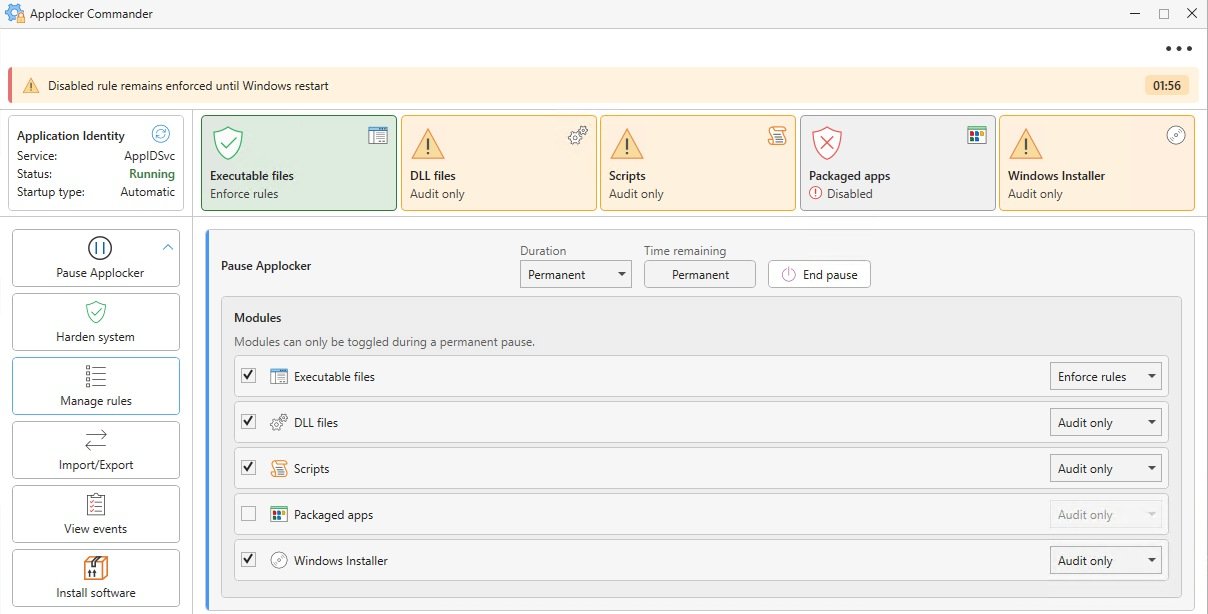
● With Duration set to 'Permanent', a module can additionally be fully disabled (uncheck its checkbox)
● The module then shows 'Disabled' in the status grid above
● Warning: the disabled module is automatically re-enforced by AppLocker at the latest on the next Windows restart (countdown shown top right)
2.3.4 Notice Before Pausing
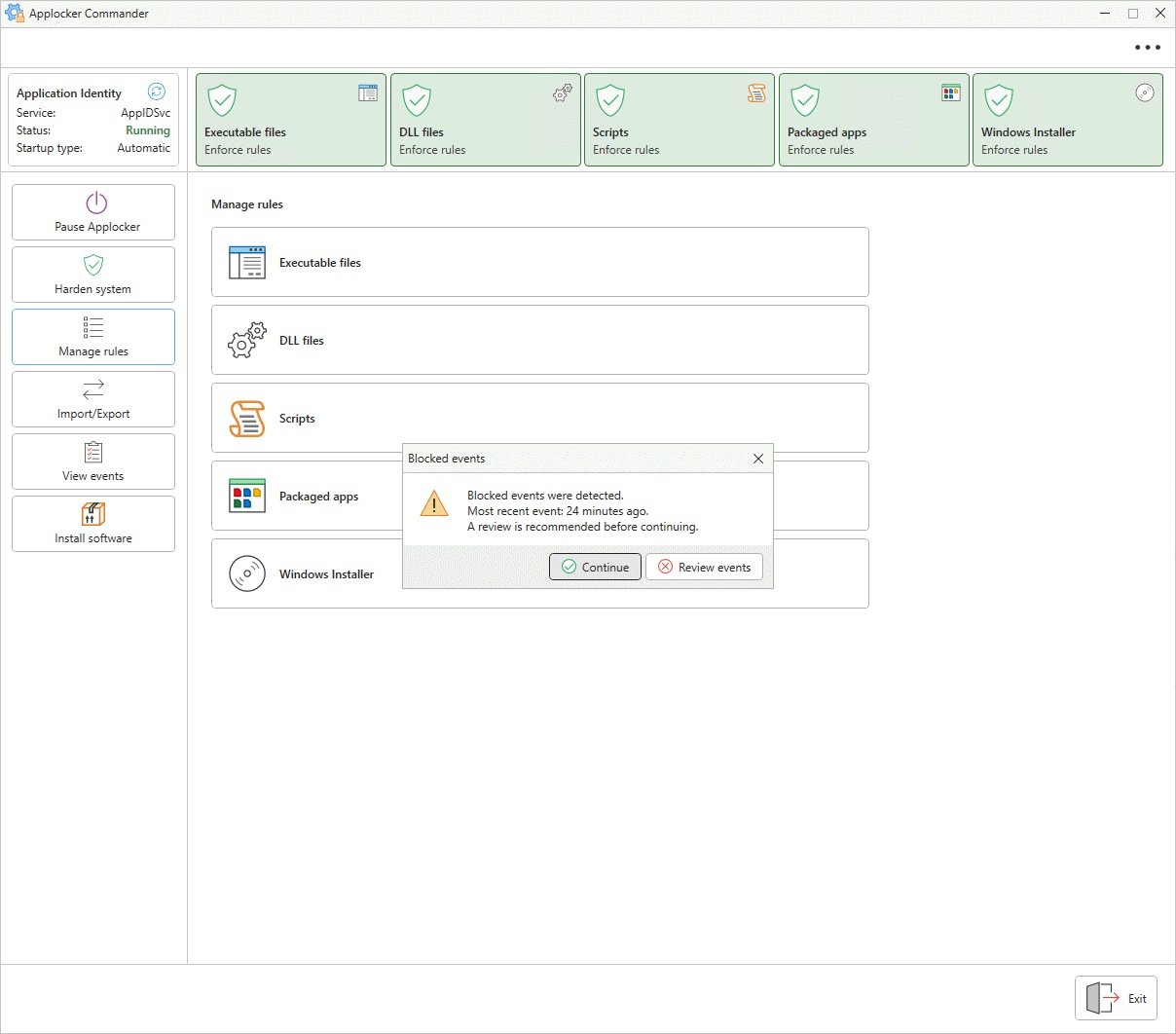
● Appears when blocked events already exist at the moment pausing is started
● Continue pauses anyway; Review events first opens the event overview
2.4 Manage Rules
2.4.1 Rule Overview
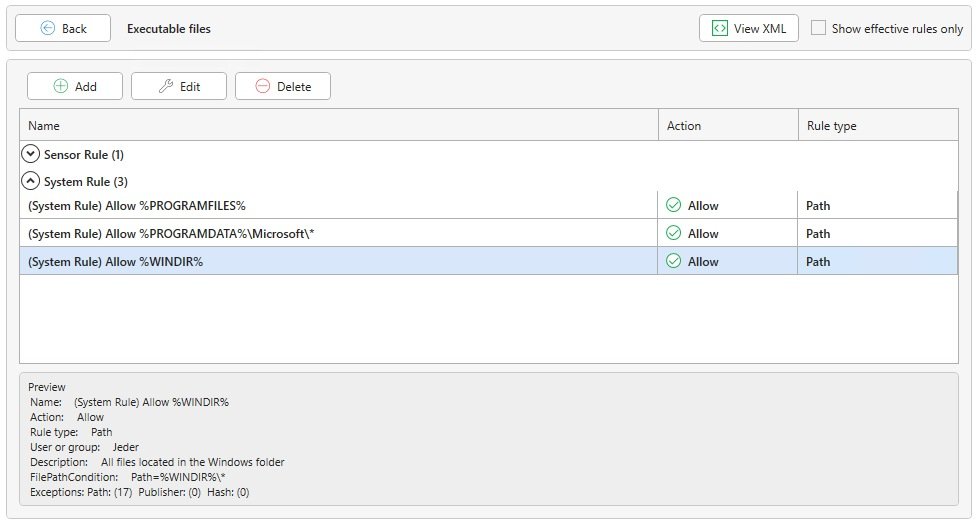
● Rules are grouped by origin: Sensor Rule, System Rule, Data Rule, Event-based Rule, User Rule, Custom Rule
● Add, edit, and delete using the buttons above
● Show effective rules only: hides overridden or inactive rules and additionally shows rules from Group Policy
● The preview below shows all details of the selected rule (action, rule type, user, number of exceptions)
2.4.2 Delete Rules
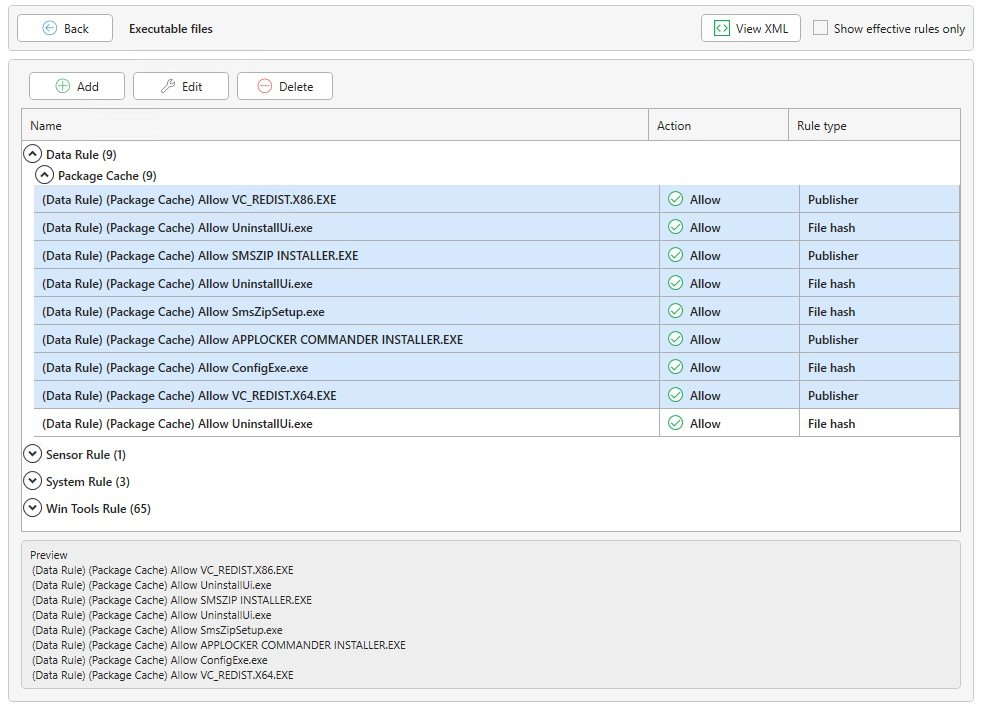
● Multiple selection is possible to delete several rules at once
2.4.3 Group Rules
● Parentheses in the rule name group the rules in the overview – rules with the same parenthesised label are shown together.
● Name: (User Rule) (Desktop) Allow INSTALLER.EXE
2.4.4 View XML
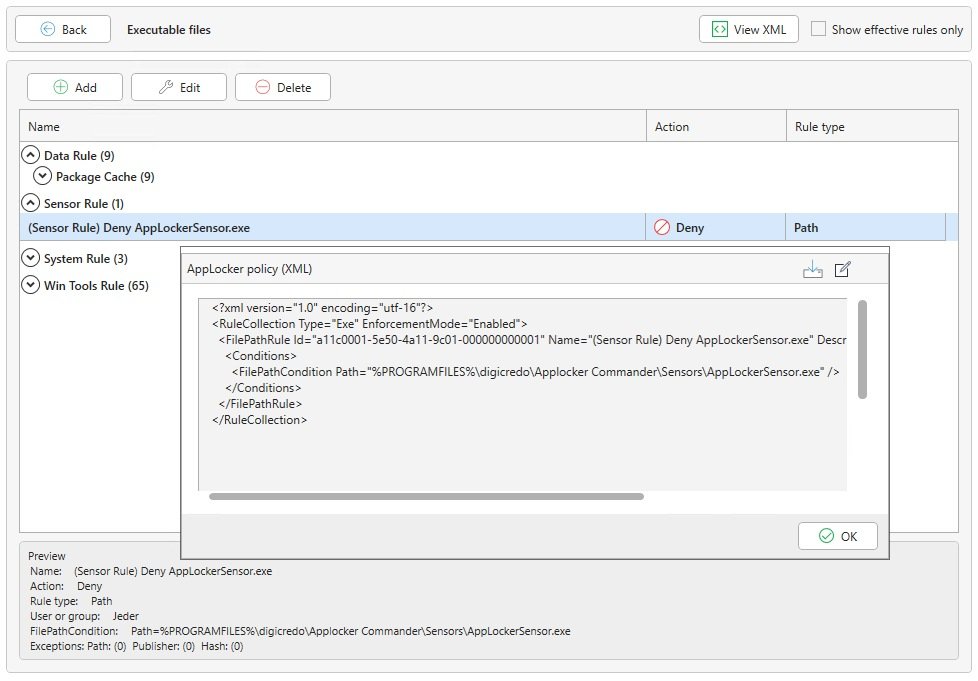
● Shows the native AppLocker rule as XML, including the download and clipboard icons
2.4.5 Create Rule
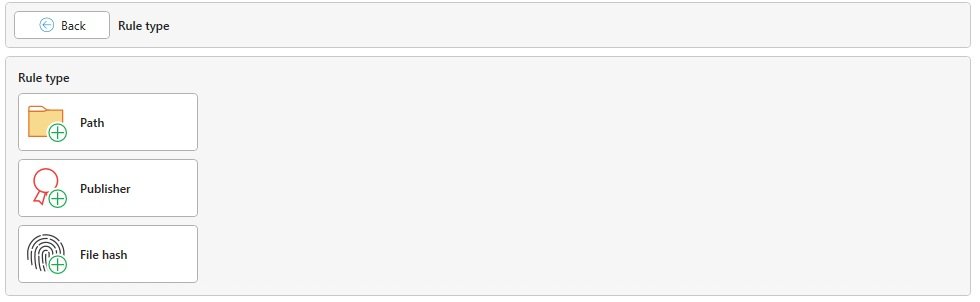
● Choice of rule type: Path, Publisher, or File hash
2.4.5.1 Path
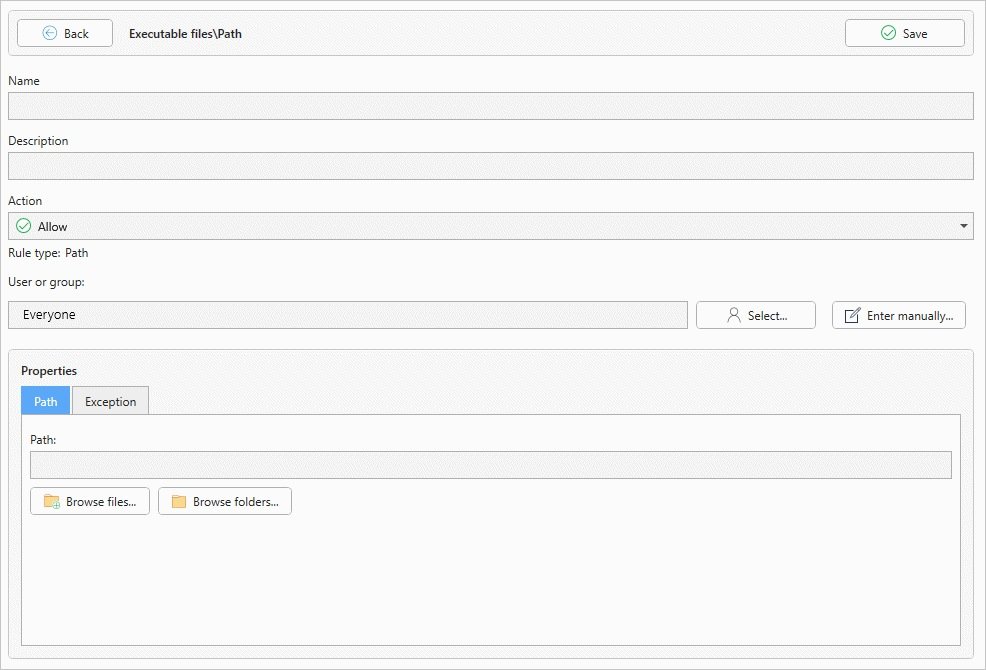
● Name, description, action (Allow/Deny), and user or group can all be freely defined
● Enter the path directly, or select it via Browse files/Browse folders
● The Exception tab allows individual subpaths to be excluded from the rule
2.4.5.2 Publisher
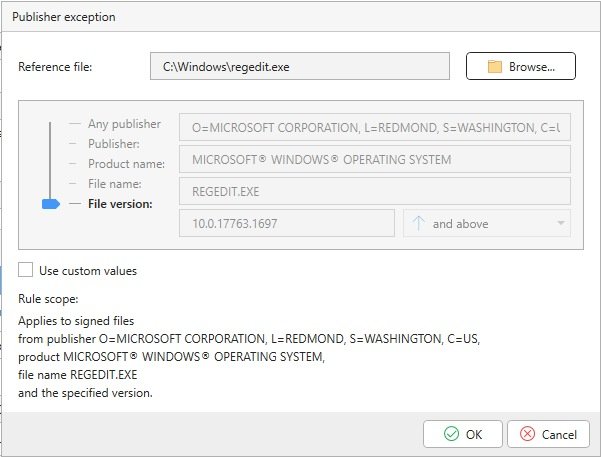
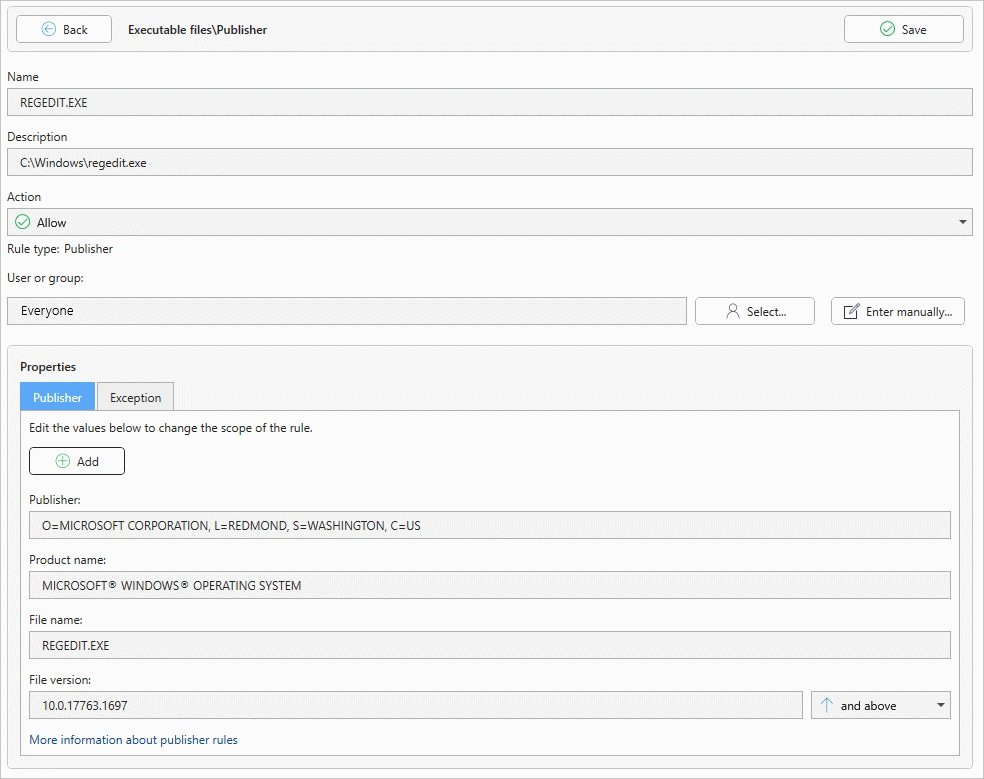
● Values (publisher, product name, file name, version) can be automatically taken from a reference file
● A slider lets you set how granular the rule is (e.g. publisher only, or down to the exact version)
● Use custom values allows individual fields to be adjusted manually
2.4.5.3 File Hash
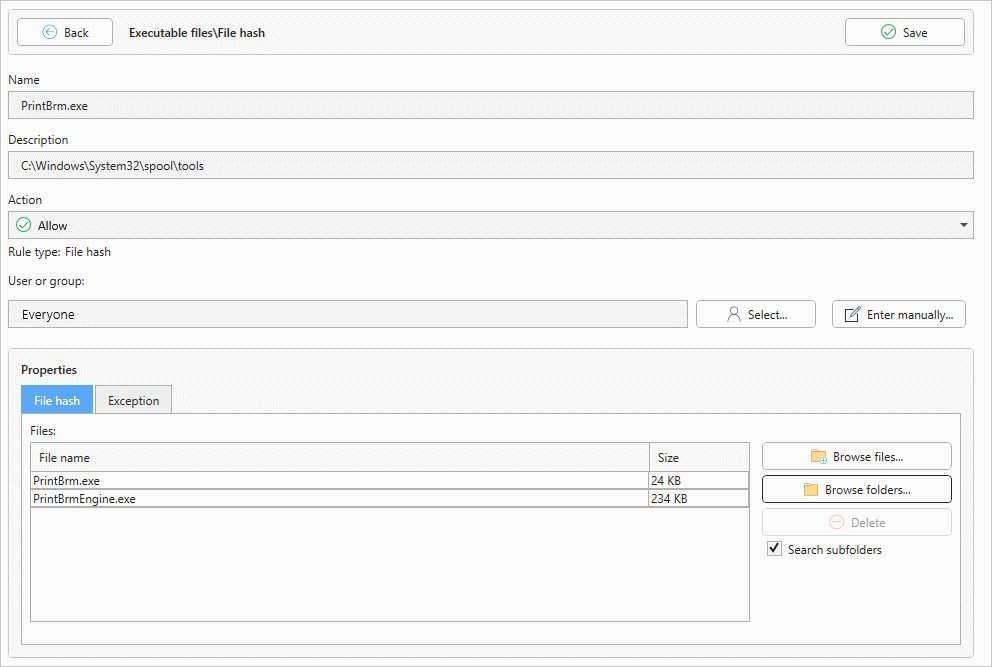
● Capture one or more files by hash (independent of path or signature)
● Search subfolders includes all files in subdirectories
2.4.5.4 Packaged Apps
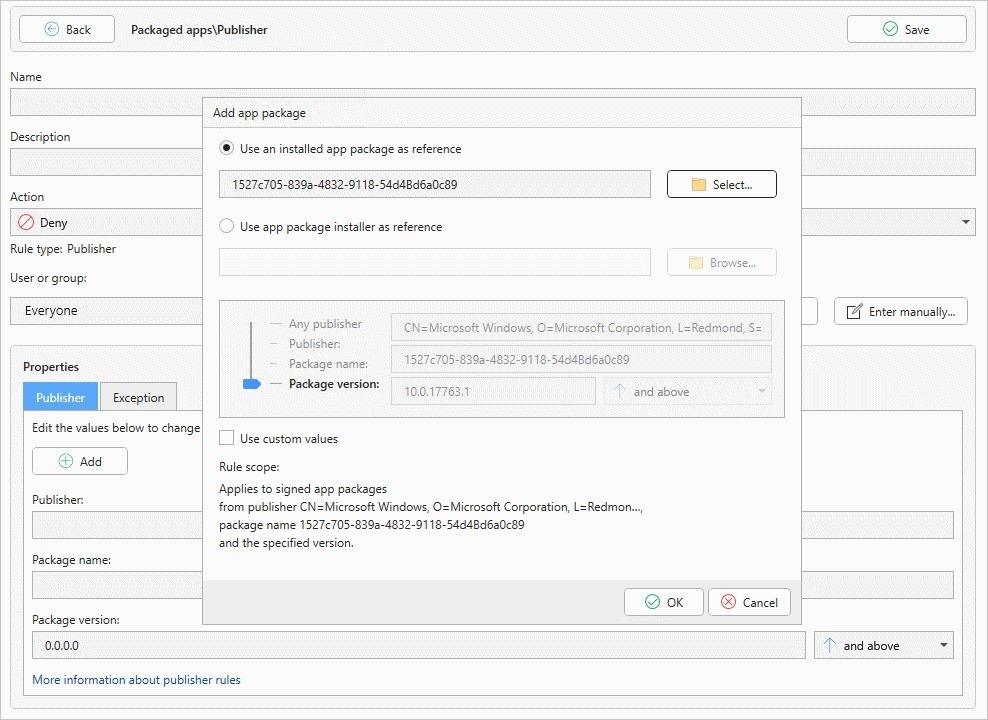
● Mainly used to specifically exclude a single app (action: Deny)
● Reference either an installed app package or its installer
2.4.6 Edit Rule
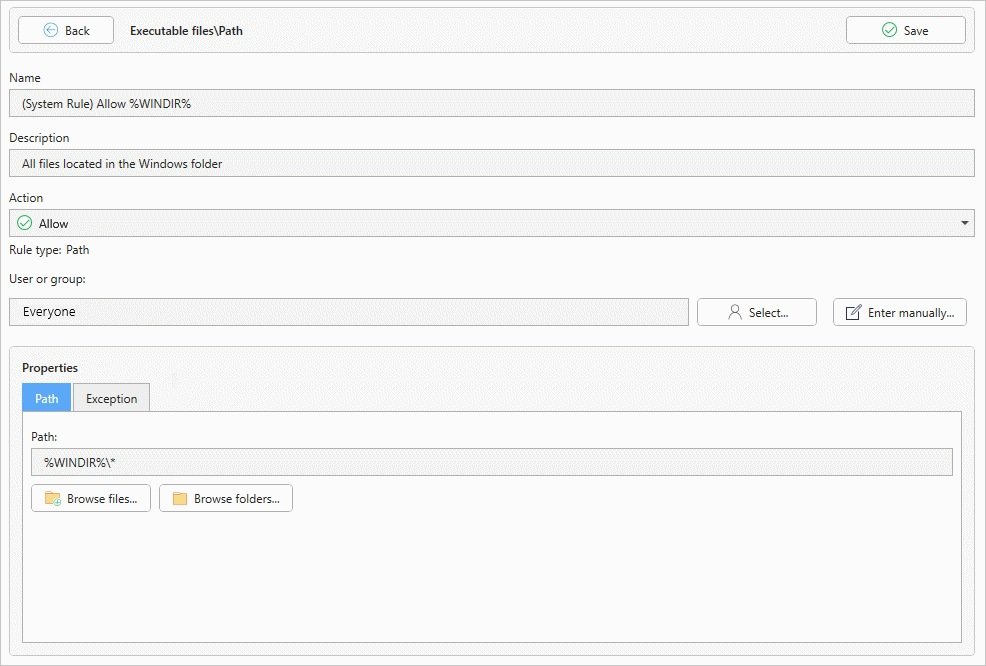
● Existing rules can be fully edited afterward (name, action, path, etc.)
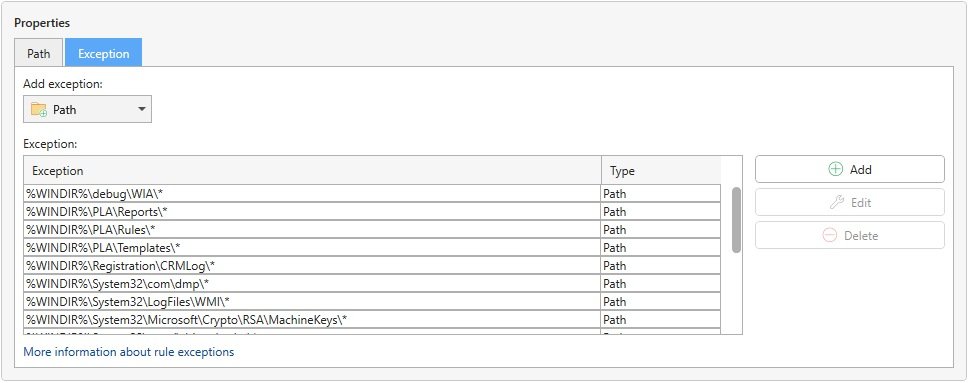
● Multiple exceptions can be managed in the Exception tab – default rules often already include predefined system exceptions
2.5 Harden System
2.5.1 Levels: System Rule, Data Rule, User Rule
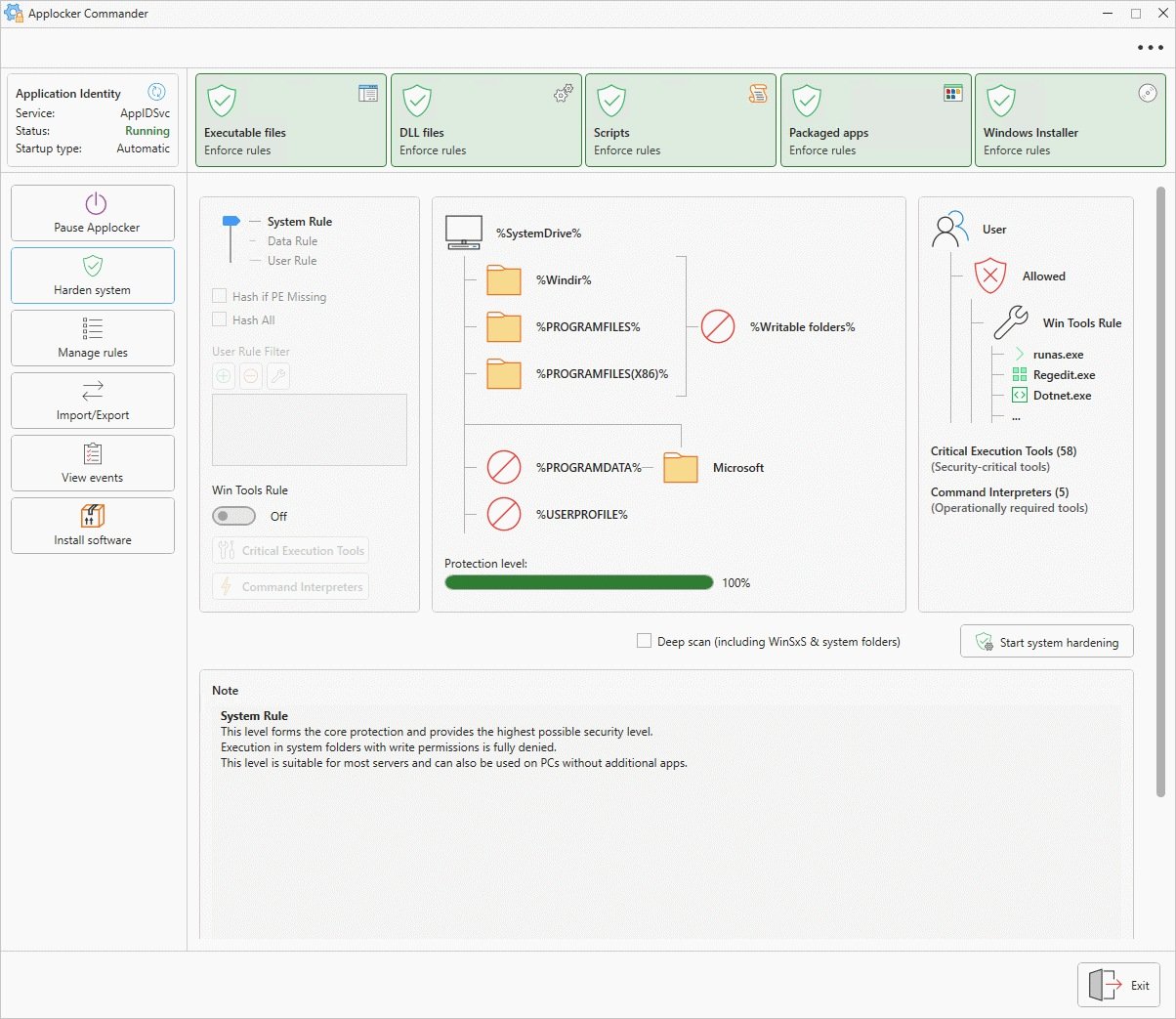
● System Rule: core protection. Execution in system folders with write permissions is fully denied. Suitable for most servers, even without additional apps.
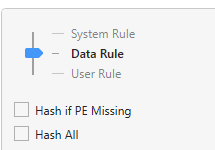
● Data Rule: also protects %PROGRAMDATA%, where Windows and third-party data is stored. Only registered signatures/hashes may run there.
● User Rule: also protects the entire user area (%USERPROFILE%), where applications, installers, and temp files are located
● The protection level bar shows the security achieved as a percentage
2.5.2 Data Rule Fine-Tuning
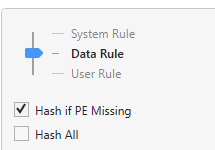
● Hash if PE Missing: signed files without PE product/binary metadata are allowed by hash instead of by publisher alone
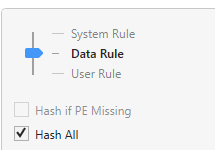
● Hash All: highest possible integrity check, using hash rules for all files in this area
● Requires ongoing administration – after every update, affected processes must be manually re-approved
● Best suited to high-security environments with a fixed, well-defined software stack
2.5.3 User Rule
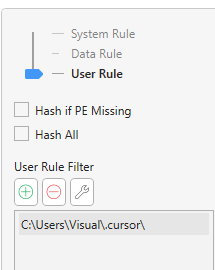
● User Rule: also protects the entire user area (%USERPROFILE%), where applications, installers, and temp files are located. Only registered signatures/hashes may run there.
● Custom paths can be permanently excluded from this level via User Rule Filter
2.5.4 Win Tools Rule
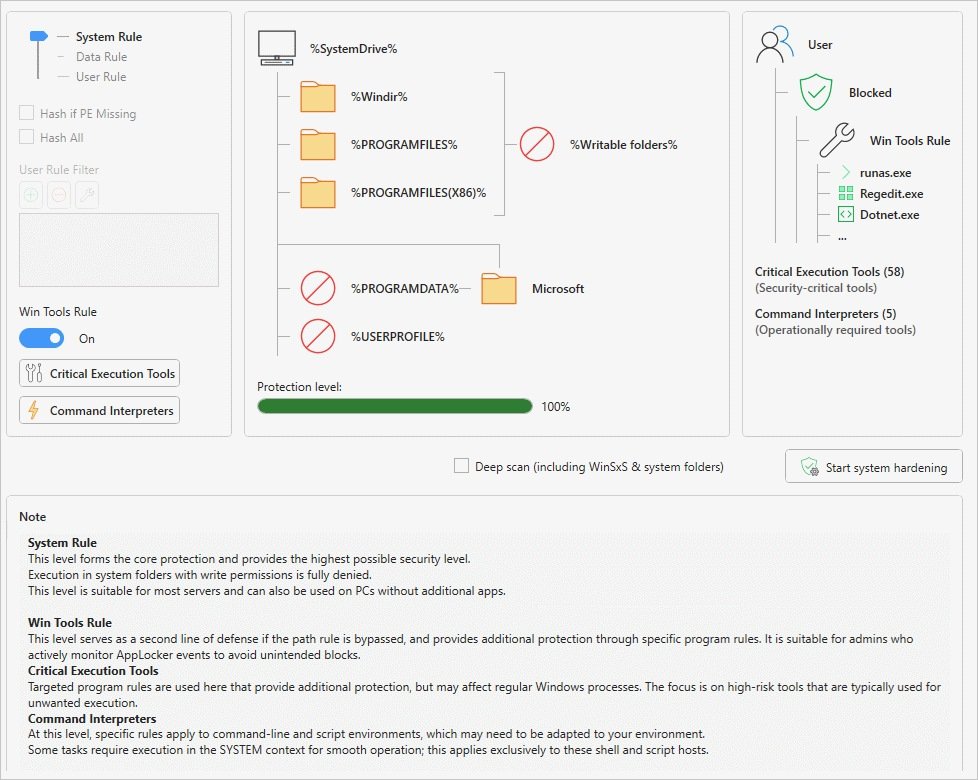
● Closes the most common bypass route: the misuse of script interpreters and system tools, for example when an Office macro tries to launch PowerShell or Cmd to load a fileless payload into memory
● Applies to the Everyone group and therefore also to processes in the SYSTEM context (e.g. maintenance tasks, backup or update software) – disabled by default for this reason, and intended for admins who actively monitor AppLocker events to detect and prevent unintended blocks
2.5.4.1 Critical Execution Tools
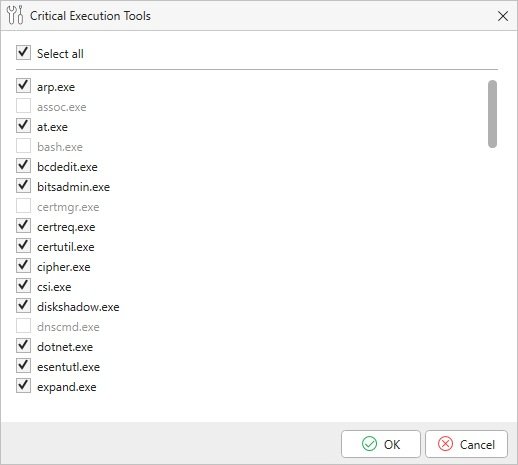
● Critical Execution Tools: targeted rules for security-critical Windows tools (e.g. bcdedit.exe, certutil.exe) that can be misused for unwanted execution
● Greyed-out entries (e.g. assoc.exe, bash.exe) are not present on the given system
2.5.4.2 Command Interpreters
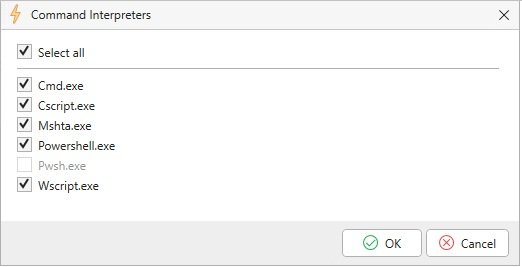
● Command Interpreters: rules for command-line and script environments (Cmd, Cscript, Mshta, Powershell, Wscript)
● For smooth operation, some of these rules apply in the SYSTEM context, limited to these shell and script hosts
2.5.5 Start System Hardening
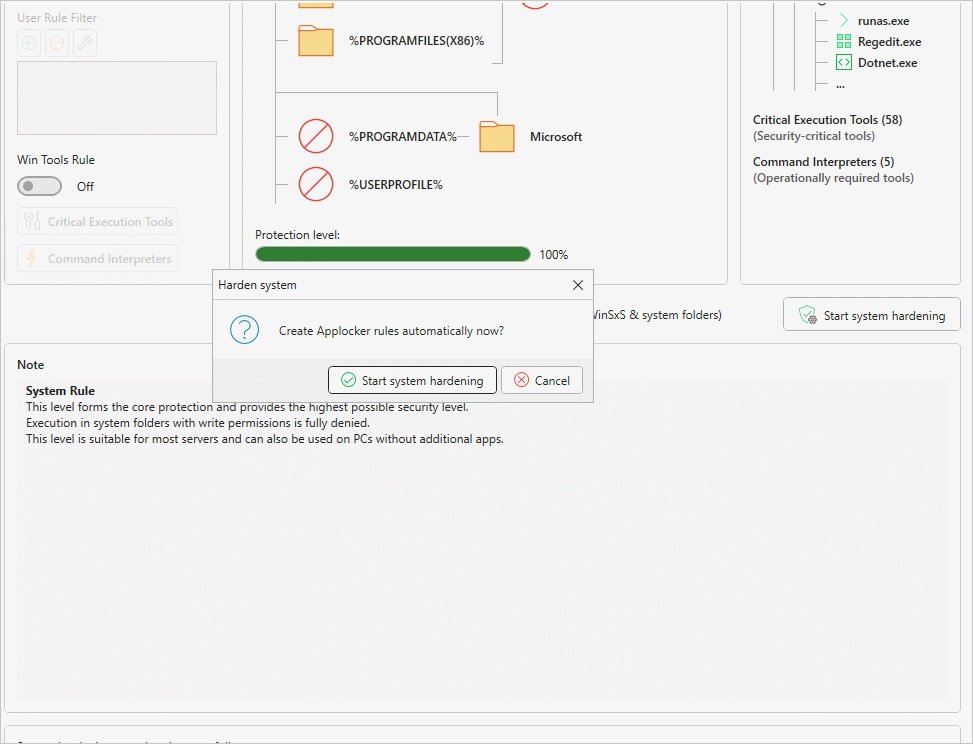
● Optionally enable Deep scan (including WinSxS & system folders) for a particularly thorough analysis
● Start system hardening explicitly asks for confirmation once more before running
● Every included folder is checked for write permissions: in folders that users can write to, a malicious file could simply be placed and run – such directories are therefore excluded from execution
● Files that still need to run there can be specifically approved by publisher (certificate) or hash
2.5.6 System Hardening Complete
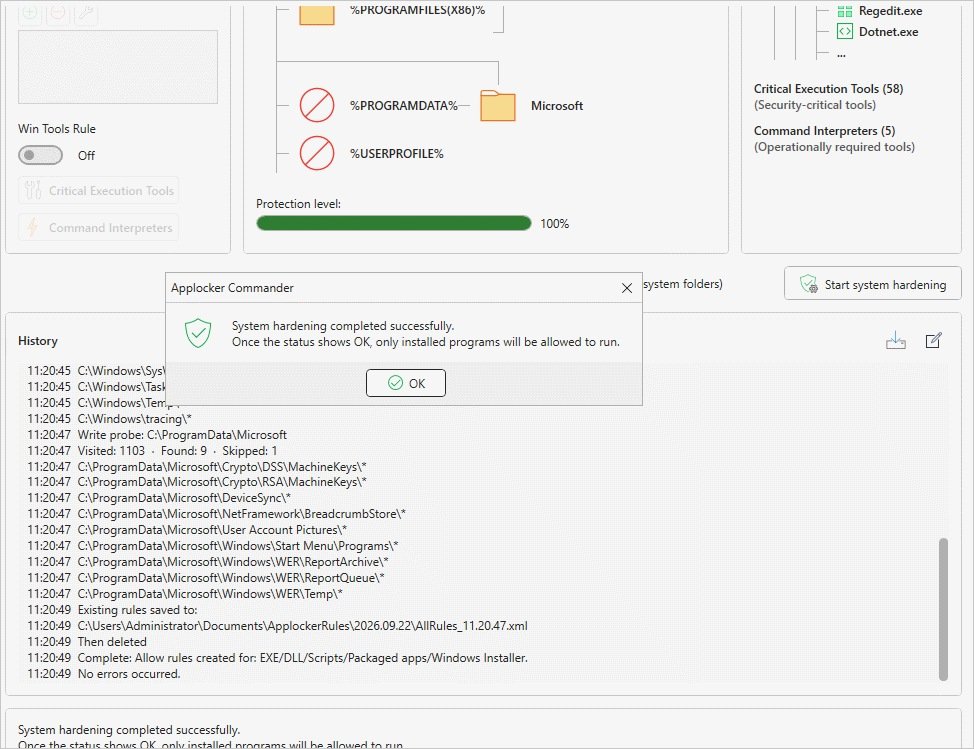
● The history logs every step: paths scanned, saved rule backup, number of objects found/skipped
● The completion message confirms: once the status shows OK, only installed programs will be allowed to run
2.6 View Events
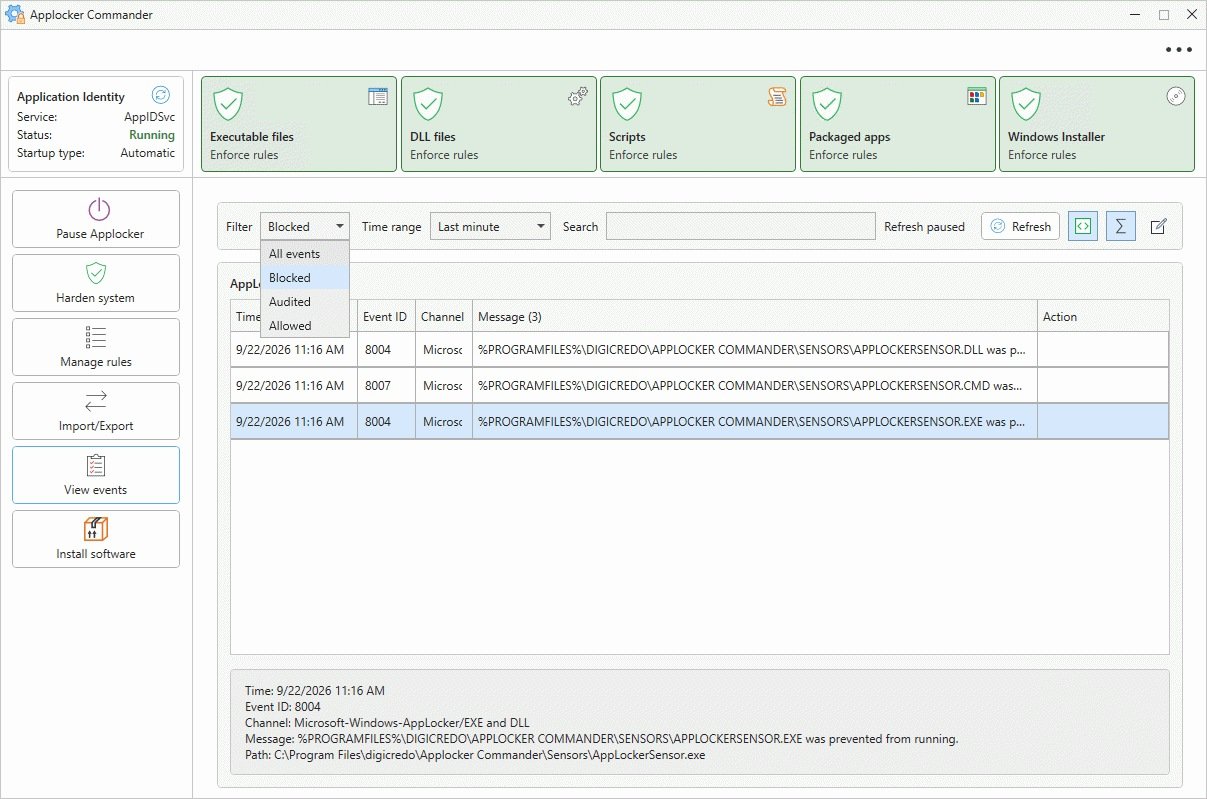
● Filter: All events, Blocked, Audited, or Allowed
● Clicking an event shows all its details
2.6.1 Time Range and Search
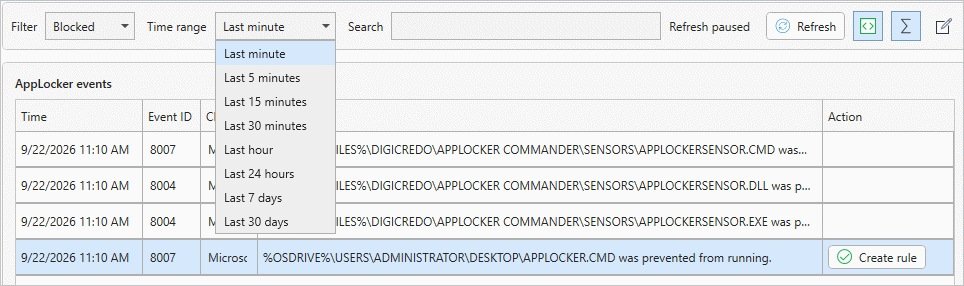
● Time range selectable from Last minute to Last 30 days
● Search performs a full-text search of the event list and shows the matching events
● Refresh runs automatically and pauses when an event is selected
2.6.2 Hide AppLocker Self-Test

● AppLocker creates temporary PS1 files for self-tests, which can be hidden.
2.6.3 Merge Duplicates

● When the same event occurs multiple times, the filter shows only the most recent one.
2.6.4 Copy Event to Clipboard

● The event is copied to the clipboard.
2.6.5 Create Rule from Event
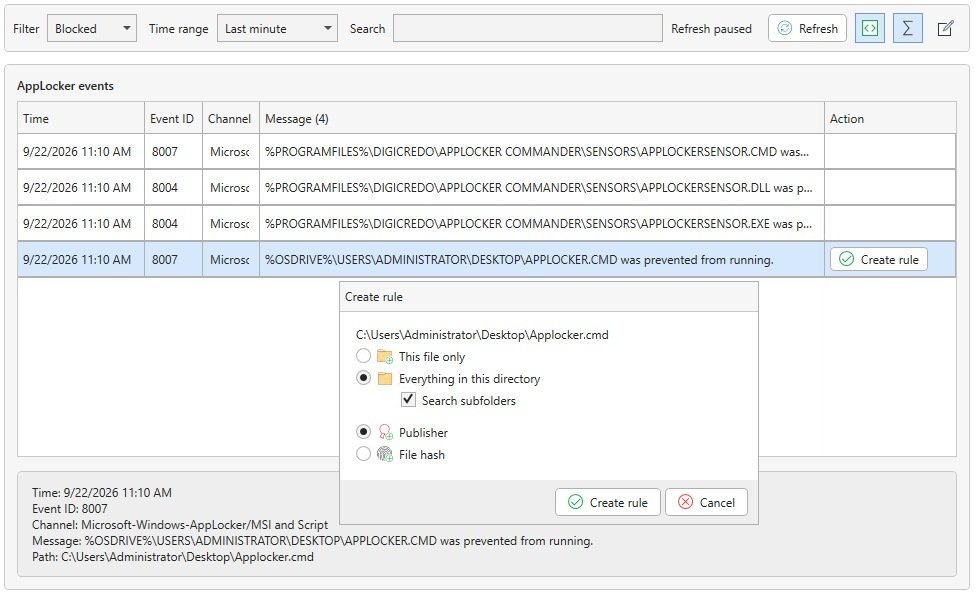
● Clicking Create rule on a blocked event opens the rule wizard
● Scope selectable: This file only, Everything in this directory (optionally including subfolders), Publisher, or File hash
● Automatically creates a matching AppLocker rule based on the event
2.7 Import/Export
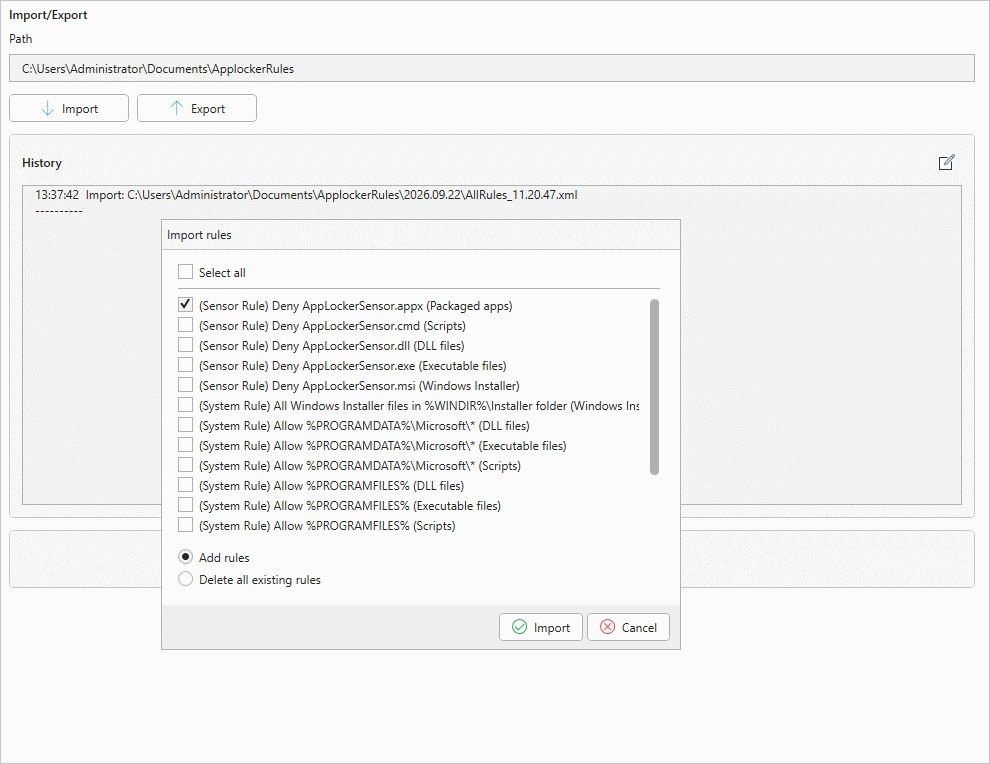
● Path for import/export freely selectable
● Export saves all current rules as an XML file
● Import allows individual rules to be selected from an XML file via checkbox
● Add rules supplements the current selection; Delete all existing rules replaces the entire rule set
● History logs every import/export operation with a timestamp and path
2.8 Install Software
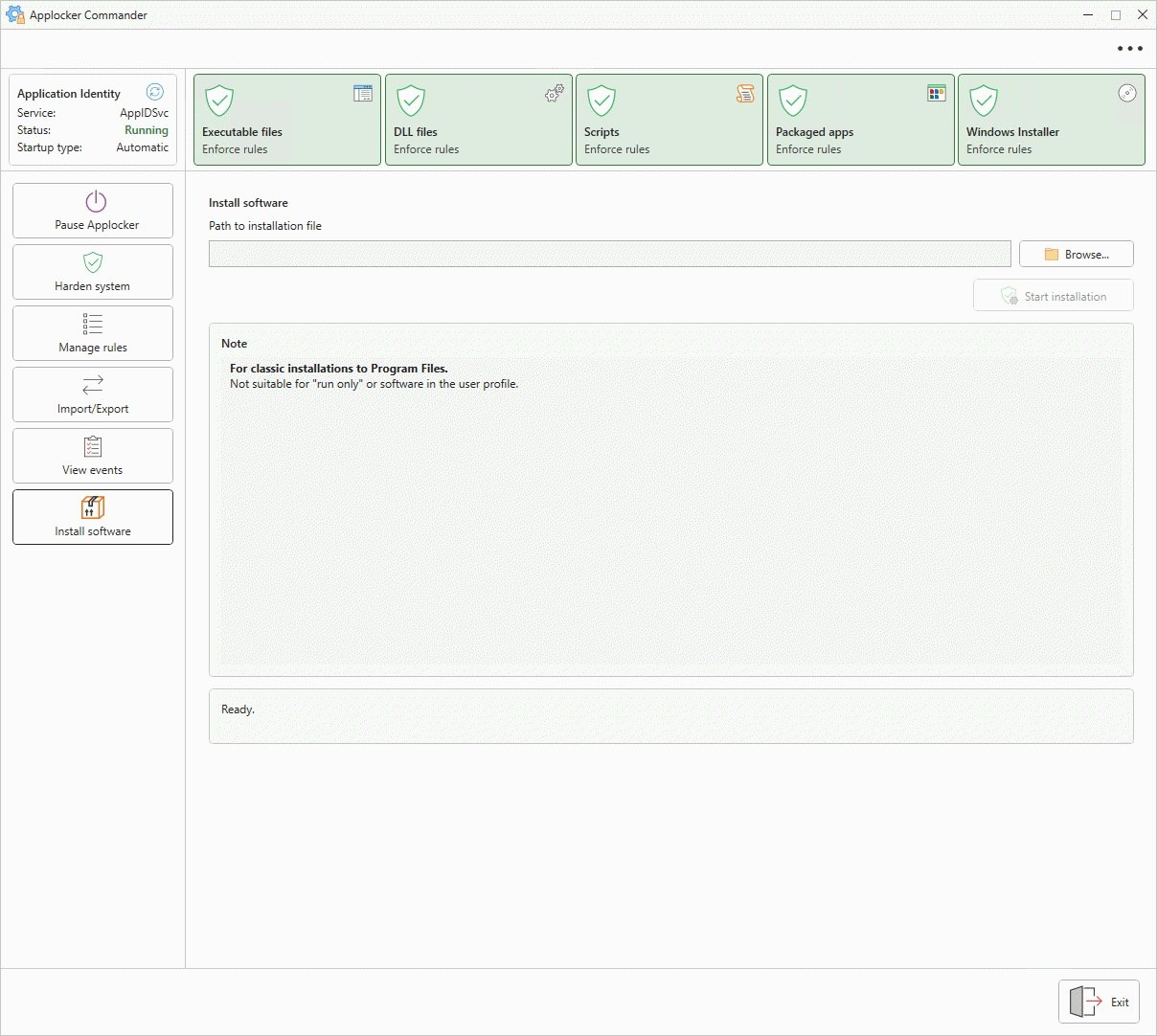
● Enter the path to the installation file and start the installation
● Intended for classic installations into Program Files
● Not suitable for portable applications ('run only') or software installed into the user profile
2.9 Settings
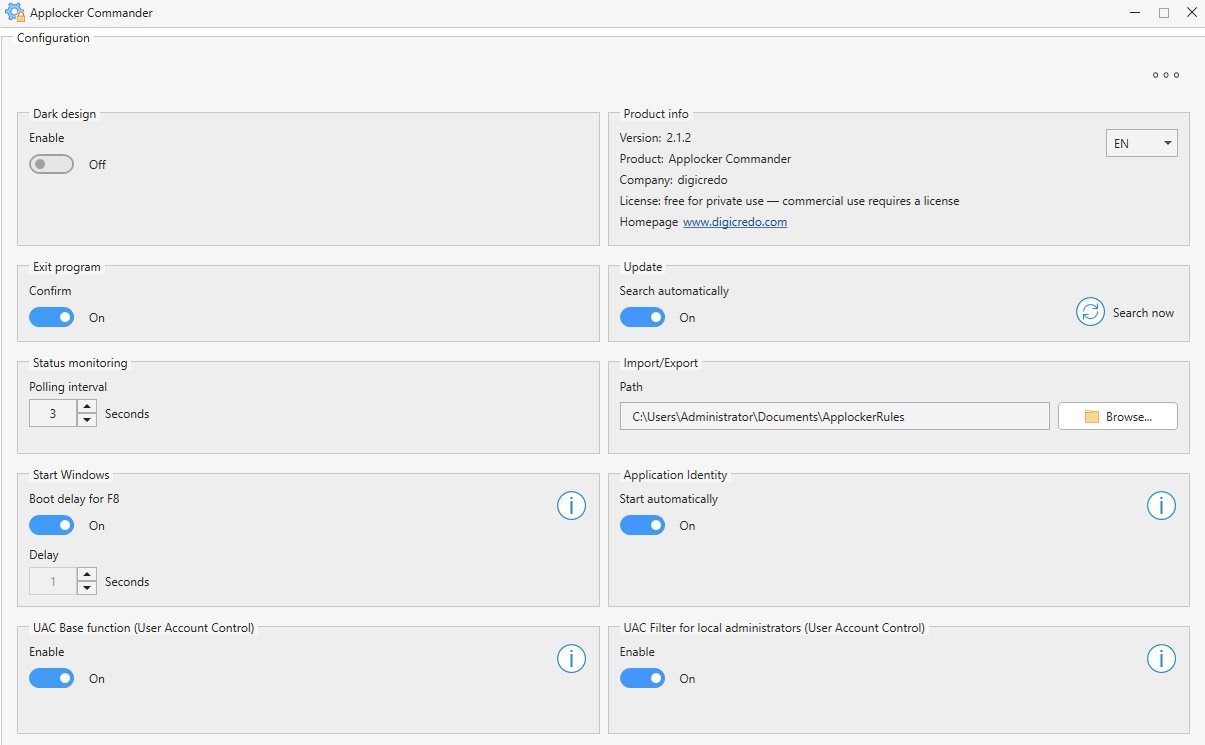
● Dark design can be toggled
● Product info with version, license status, language (EN), and homepage link
● Exit program: confirmation on close can be turned on/off
● Update: automatic search, or manually via Search now
● Status monitoring: polling interval in seconds
● Import/Export: default path for rule files
2.9.1 Start Windows
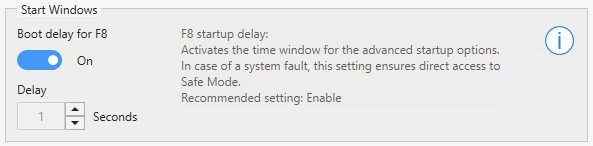
Boot delay for F8: enables the time window for the advanced startup options. In the event of an error, this setting allows direct access to Safe Mode. Recommended setting: Enabled.
2.9.2 Application Identity
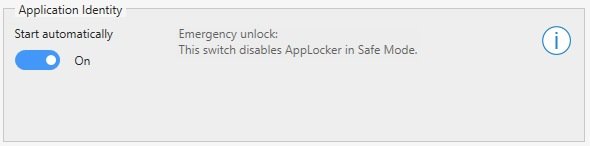
Start automatically (emergency unlock): if an incorrectly created rule blocks system startup, AppLocker can be disabled via this switch in Safe Mode – the system will then start normally again.
2.9.3 UAC Base Function
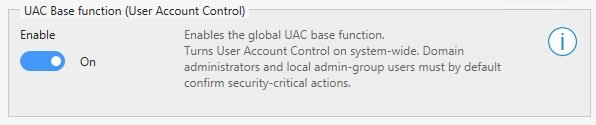
Enables User Account Control system-wide. Domain admins and local users in admin groups must confirm security-critical actions by default.
2.9.4 UAC Filter for Local Administrators

Protects system folders and resources for admin accounts as well. Disabling it shows a warning, since this represents a security risk. Recommended setting: Enabled.
3 License
· Private use of AppLocker Commander is free of charge.
· A license is required for commercial use.
License information: AppLocker Commander License – digicredo